
Connect ClickHouse
This guide shows you how to connect ClickHouse to NVECTA as a source. NVECTA connects to ClickHouse through its HTTP interface, using a dedicated read-only user.
Once ClickHouse is connected, you can build models on its tables. For the full flow from source to models, see Setting up sources and models.
Before you begin
- Access to ClickHouse: You need a ClickHouse user that can create users and grant permissions, such as the default admin user.
- Your data in place: One user master table and your event tables, in the shape described in How user and event models connect.
- Network access: ClickHouse must accept connections from NVECTA on its HTTP port. You set this up in Step 3.
Step 1: Create a read-only user for NVECTA
Create a dedicated ClickHouse user for NVECTA, so you control exactly what it can read. Run these commands as an admin user. Replace analytics with the database that holds your user and event tables, and choose your own password.
-- Create the user NVECTA will connect as
CREATE USER IF NOT EXISTS nvecta_reader
  IDENTIFIED WITH sha256_password BY 'Choose-A-Strong-Password1';

-- Let the user read every table in the database, including tables you add later
GRANT SELECT ON analytics.* TO nvecta_reader;
- More than one database: Repeat the
GRANTline for each database NVECTA should read. In ClickHouse, a database works like a schema in other warehouses. - New tables: Because the grant uses
analytics.*, tables you create in that database later are covered automatically.
Step 2: Find your connection details
| NVECTA field | What to enter | Example |
|---|---|---|
| Host | The hostname or IP address of your ClickHouse server, without http:// or a port. | clickhouse.internal.acmeretail.com |
| Port | The port of ClickHouse's HTTP interface. The default is 8123. | 8123 |
| Database | The database that holds your user and event tables. | analytics |
If you use ClickHouse Cloud, your service exposes HTTPS on port 8443 rather than HTTP on 8123.
Step 3: Allow NVECTA to reach ClickHouse
If your ClickHouse has a firewall, whitelist NVECTA's IP addresses in it. To get the IP addresses, contact [email protected]. Where you do this depends on how you run ClickHouse:
- Self-managed ClickHouse: Allow inbound connections to your HTTP port from NVECTA's IP addresses in your firewall or security group.
- ClickHouse Cloud: Add NVECTA's IP addresses to your service's IP access list.
Step 4: Add ClickHouse in NVECTA
Where: Settings > Data Connector > Sources > Add New Source
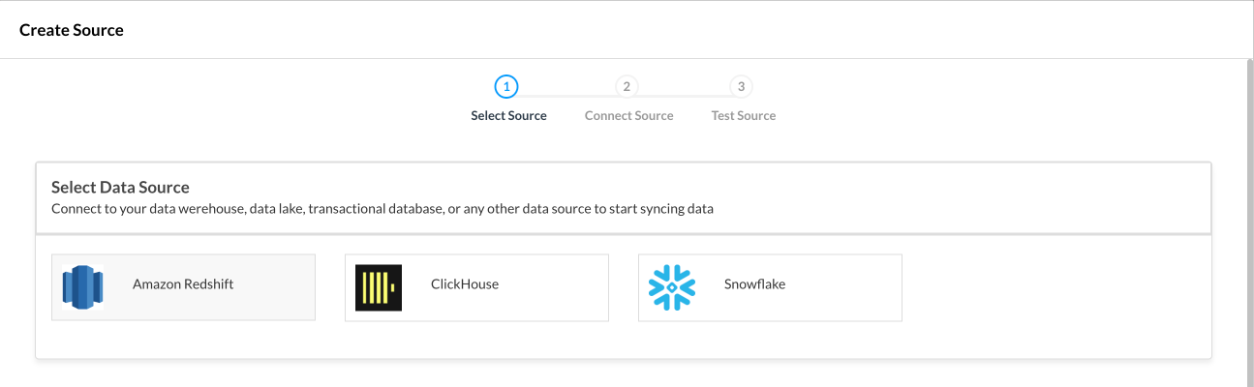
Select ClickHouse
Select ClickHouse and click Continue To Connect.
Enter your connection details
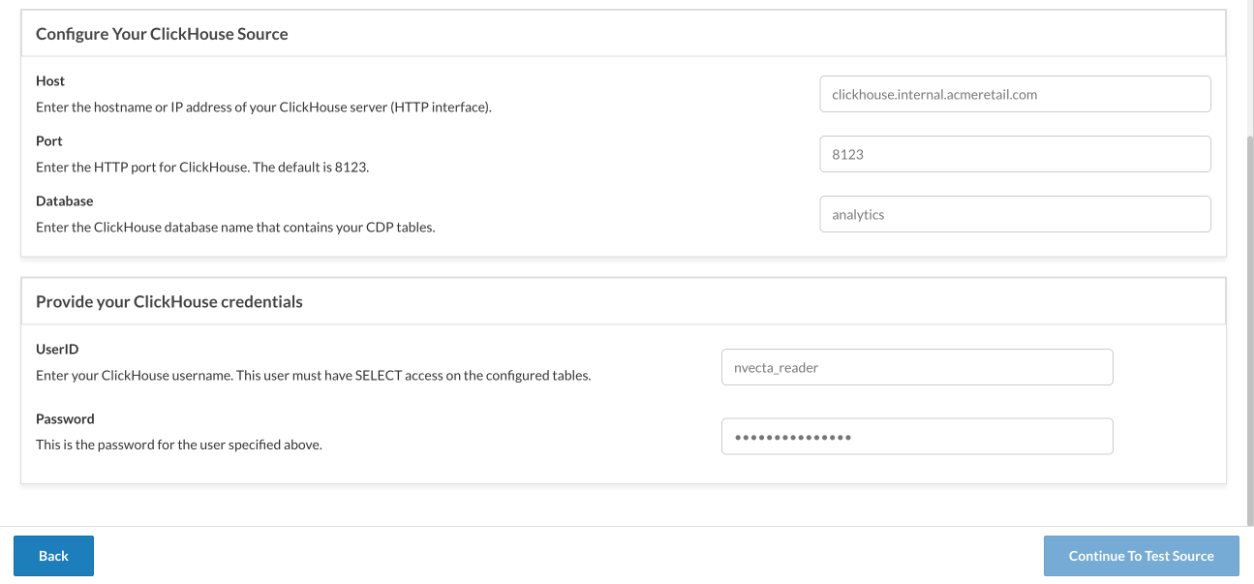
- Enter a Source Name, for example "App events store".
- Under Select Connection Type, select Connect directly to ClickHouse.
- Under Configure Your ClickHouse Source, enter the Host, Port and Database from Step 2.
- Under Provide your ClickHouse credentials, enter the UserID and Password of the user you created in Step 1.
- Click Continue To Test Source.
Test the connection
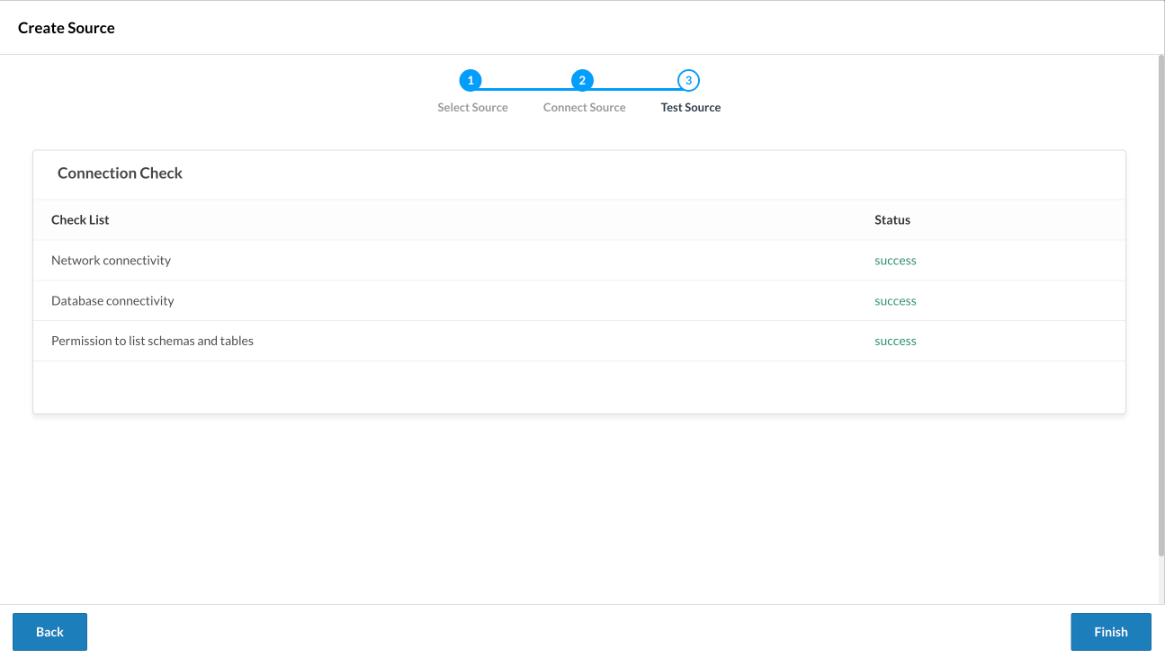
NVECTA checks the connection, the login and the user's permissions. When every check shows success, click Finish.
Your ClickHouse source now appears in the Sources tab, ready for models.
Troubleshooting
| Problem | Likely cause | What to do |
|---|---|---|
| Network connectivity fails | NVECTA cannot reach the host and port. | Check the Host and Port, make sure you entered the HTTP port and not the native port 9000, and check your firewall or IP access list. |
| Database connectivity fails | The database name, user or password is wrong. | Check the Database, UserID and Password. |
| Permission to list schemas and tables fails | The user has no access to the database. | Run the GRANT SELECT command from Step 1 for that database. |
| A SQL Query model fails with "unknown table" | The query uses a table from another database without naming it. | Write table names as database.table, for example analytics.events, and grant the user access to that database. |
What's next
Create a user model and your event models on this source. See Setting up sources and models.
Updated about 2 hours ago